AAC to Text Converter
Upload a .aac file from your phone, recorder, app, or online audio. Get a clean AAC to text transcript you can edit and export.
Video or audio files from your device
Supports mp3, wav, m4a, flac, aac, ogg, opus, webm, amr, wma, mp4, mov, avi, mkv
Key Features of Our AAC to Text Converter
Direct AAC Support
Upload the .aac file as-is. You do not need to convert it to MP3 first. The AAC to text converter reads files from phones, recorders, meeting apps, podcast tools, and downloaded clips.
Convert AAC to text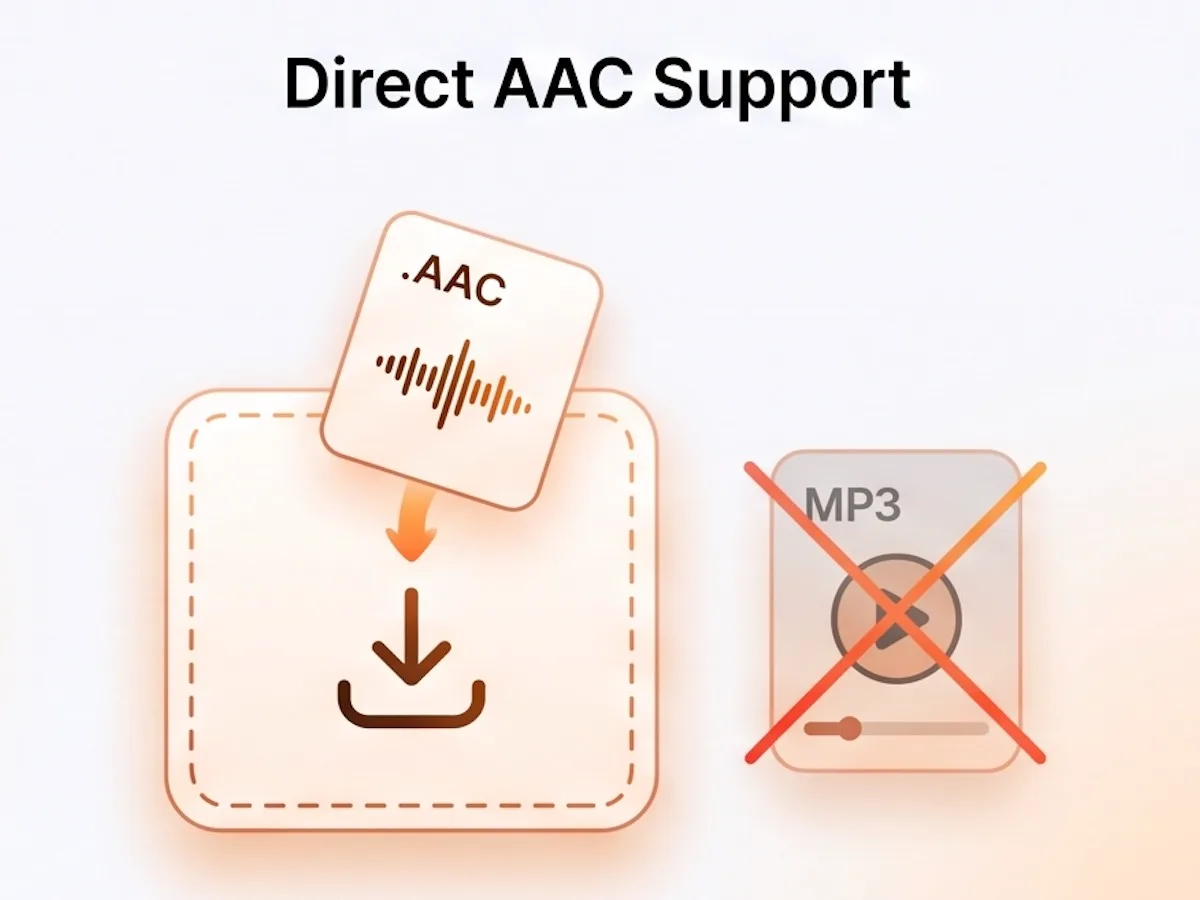
Made for Mobile and App Audio
AAC files often come from phones, chat apps, voice notes, online audio, and small recording tools. Drop the file in and keep moving. AAC to text turns the spoken words into text without extra setup.
Upload AAC file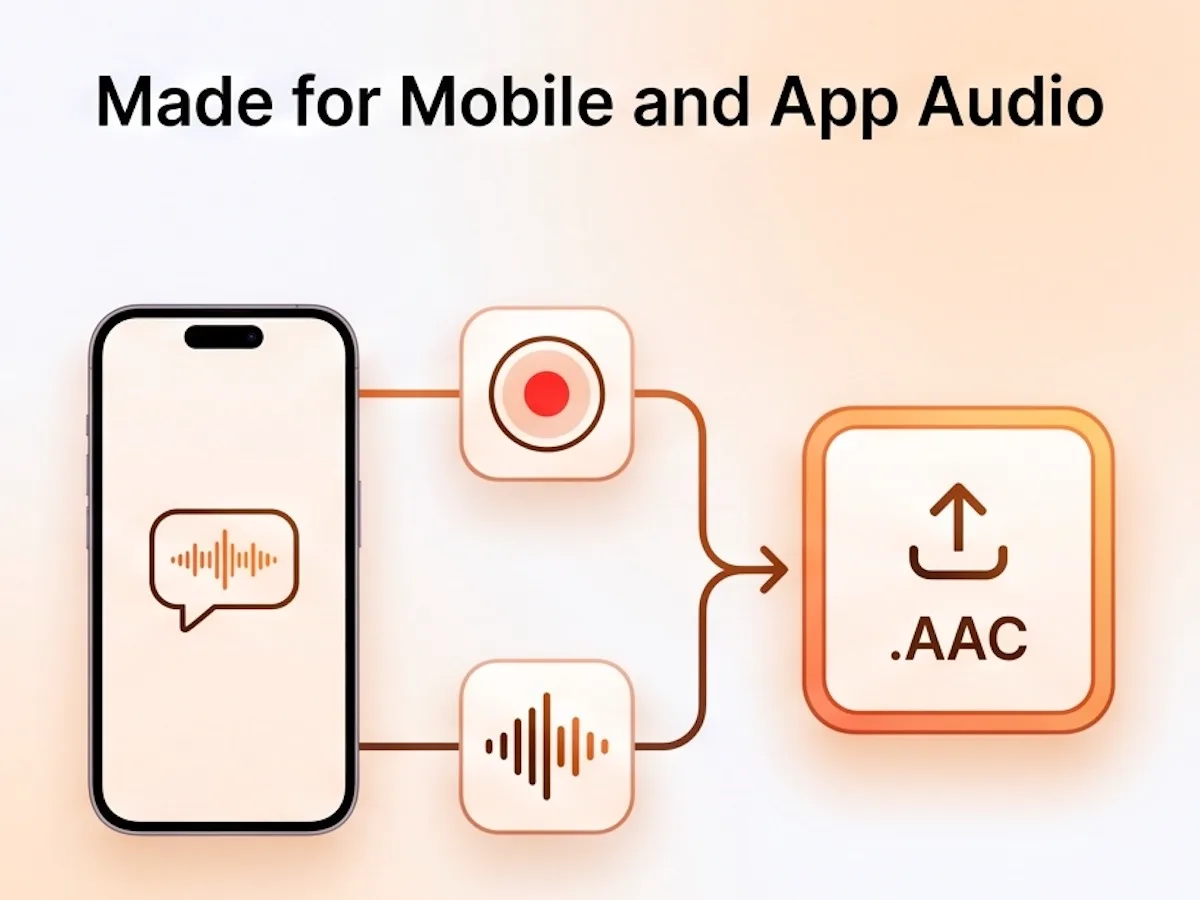
Speaker Labels and Timestamps
Working with an interview, meeting, class, or podcast? The AAC to text converter can label each speaker and show when each line was said. It is easier to find quotes, check notes, and jump back to the right moment.
Try AAC to text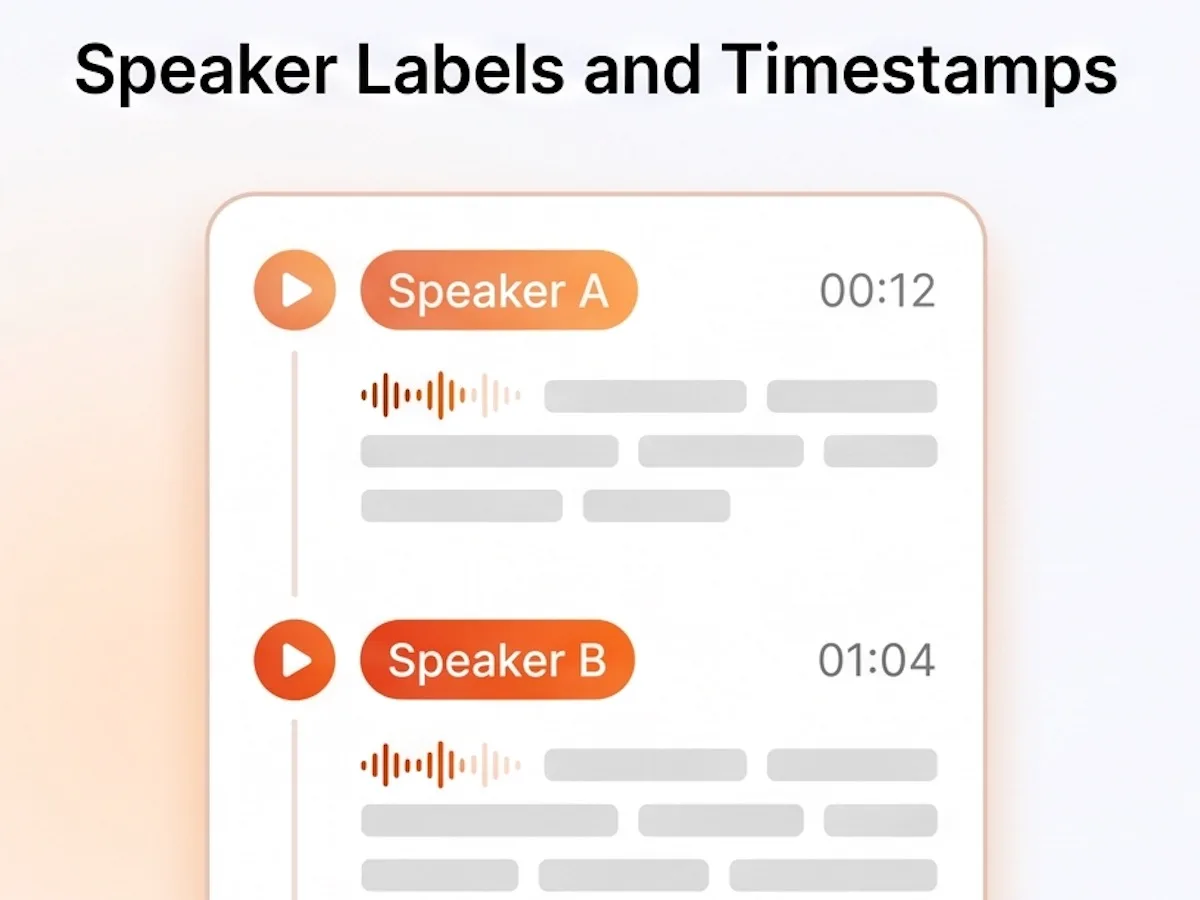
Seven Ways to Export
Use the transcript where you need it next. Export TXT for plain notes. Use DOCX or PDF for sharing. Use SRT or VTT for subtitles. Use CSV for review. Use Markdown for writing tools.
Export AAC transcript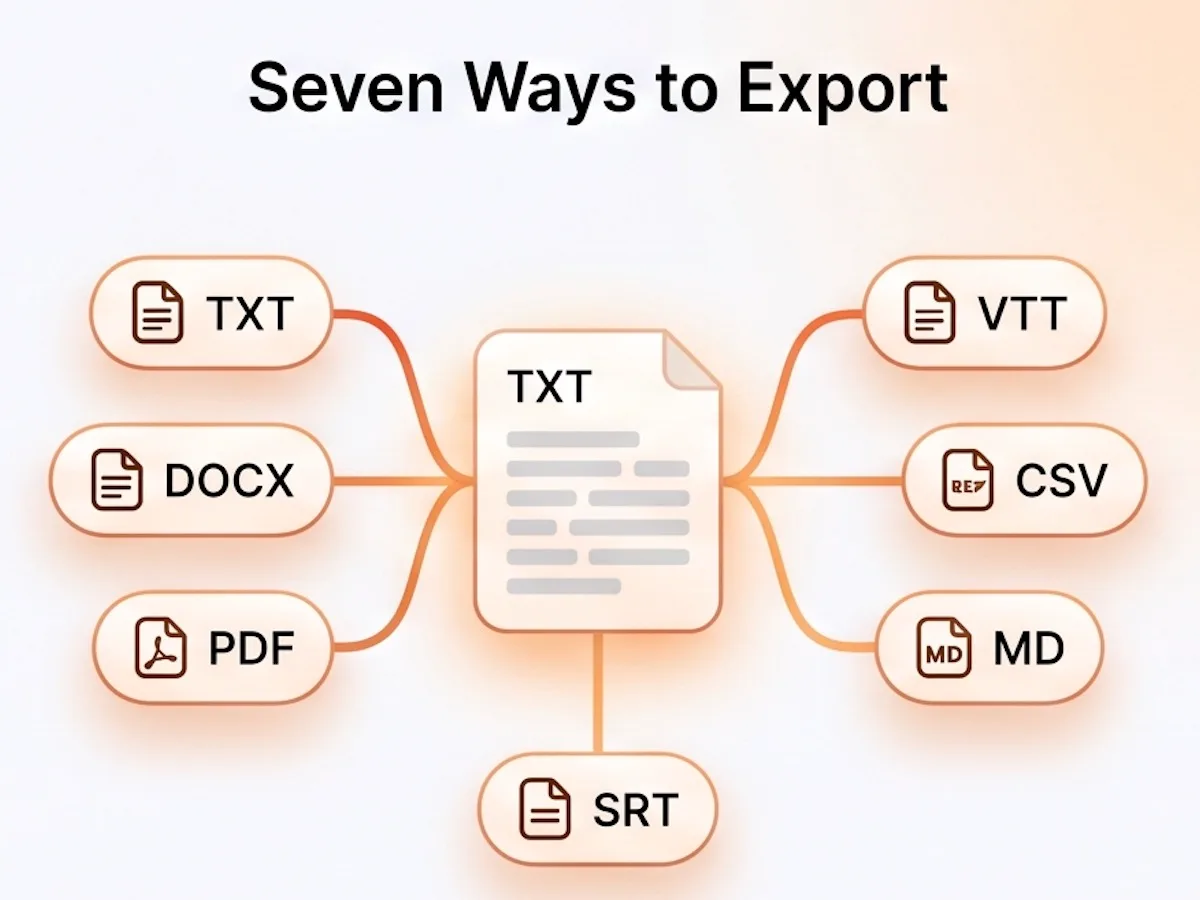
90+ Language Recognition
The AAC to text converter works with more than 90 languages. Pick the spoken language before upload, or leave auto-detect on. Use it for English, Spanish, French, German, Japanese, Korean, Portuguese, and more.
Transcribe AAC to text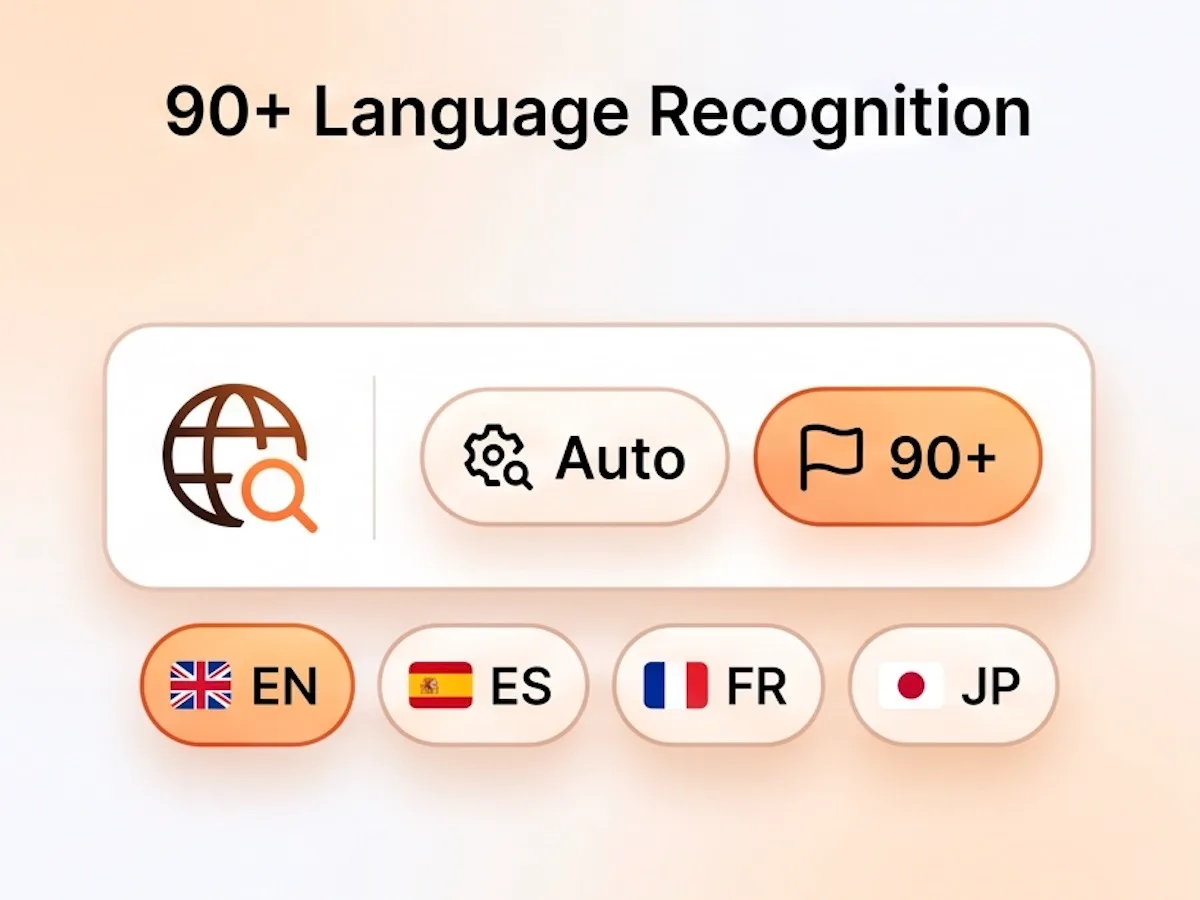
How to Convert AAC to Text
Drag the .aac file into the upload box, or click to choose it from your device. You can upload one file or add more files together.
Choose the language spoken in the recording, or use auto-detect. Turn on speaker labels if more than one person is talking.
Click Transcribe. The tool reads the AAC file and creates the transcript in the background.
Read through the transcript. Fix names, product words, or unclear lines. Then export it as TXT, Markdown, SRT, VTT, CSV, DOCX, or PDF.
Why Choose Our AAC to Text Converter
- AAC files accepted as-is
Upload the original .aac file. No MP3 conversion is needed.
- Speaker labels and timestamps
See who spoke and when. This helps with interviews, calls, classes, and podcasts.
- 7 export formats
Download TXT, Markdown, SRT, VTT, CSV, DOCX, or PDF.
- 90+ languages
Choose the language yourself, or let auto-detect find it from the audio.
- Long files in one go
Upload AAC recordings up to 10 hours and 5 GB.
- Ask you to convert first
Some tools make you turn AAC into MP3 before you can start.
- Give you one block of text
No speaker labels. No easy way to find who said what.
- Only export plain text
You may not get subtitles, Word files, PDFs, or CSV review files.
- Support fewer languages
Some tools work well only for English or a small language list.
- Limit large files
You may have to split a long recording into smaller parts.
AAC to Text — Frequently Asked Questions
What is a .aac file?
How do I convert AAC to text?
Do I need to convert AAC to MP3 first?
Is this AAC to text converter free?
Can I upload AAC files from my phone?
Can I transcribe AAC files from podcasts, classes, or meetings?
What file size and length can I upload?
What formats can I export?
Can I edit the AAC transcript?
How accurate is AAC to text transcription?
Can I export AAC to SRT subtitles?
Can I save the AAC transcript as a Word document or PDF?
Start Your AAC to Text Conversion
Upload the .aac file, let the tool create the transcript, and leave with text you can search, edit, and share.