#1 M4A to Text Converter
Upload your M4A file and get a clean transcript in minutes.
Video or audio files from your device
Supports mp3, wav, m4a, flac, aac, ogg, opus, webm, amr, wma, mp4, mov, avi, mkv
Key Features of Our M4A to Text Tool
Direct M4A Support
Upload your M4A file directly. No need to convert it to MP3 first. The M4A to text converter works with files from Voice Memos, a chat app, a recorder, or a podcast.
Convert M4A to text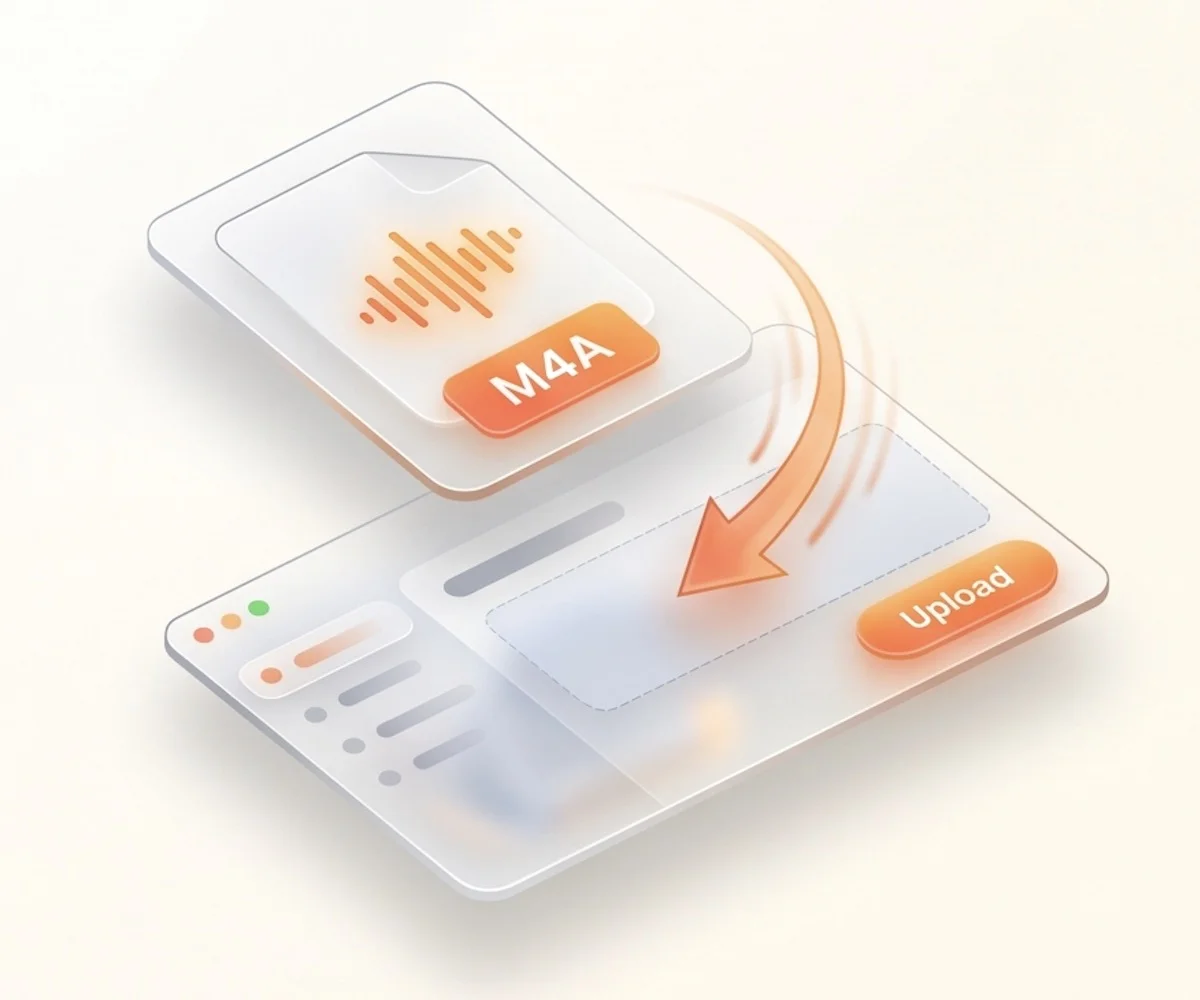
Long-File Support
A single M4A file can be up to 10 hours long and 5 GB in size. Two-hour lectures, full podcast episodes, long panels — upload them whole. No need to cut the file into smaller pieces first. The transcript comes back in one piece, with timestamps that match the original recording.
Try M4A to text converter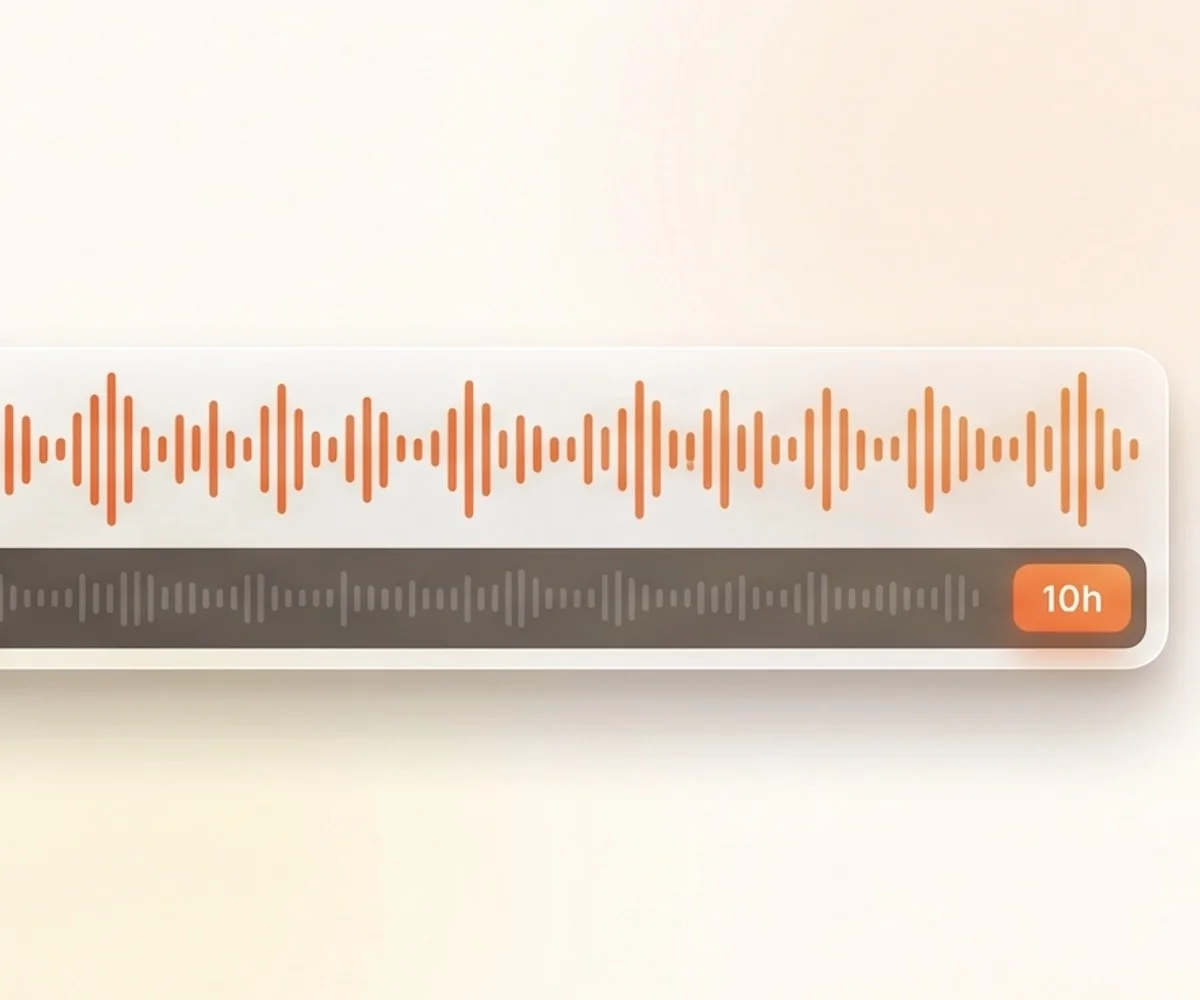
Multi-Speaker Detection
If your M4A has more than one voice — an interview, a meeting, a panel — M4A to text labels each speaker on its own block. Every block shows who spoke and when. Find a quote in seconds instead of replaying the whole file.
Try M4A to text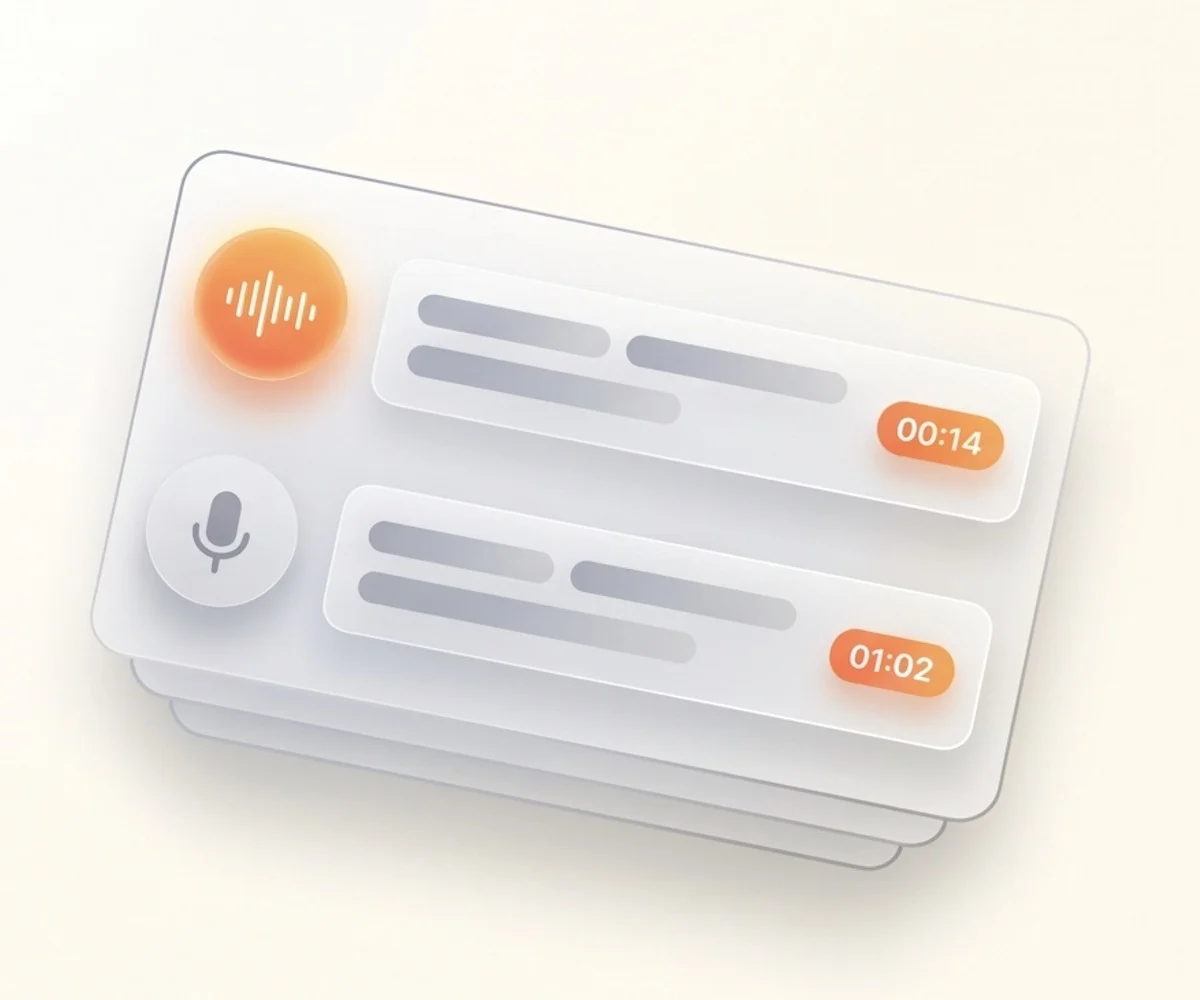
Seven Ways to Export
Pick the format your next step needs. SRT and VTT for video subtitles. DOCX for reports. PDF for sharing. CSV for spreadsheet review. Markdown for writing apps. TXT for plain text. One M4A file, seven export options.
Get M4A to text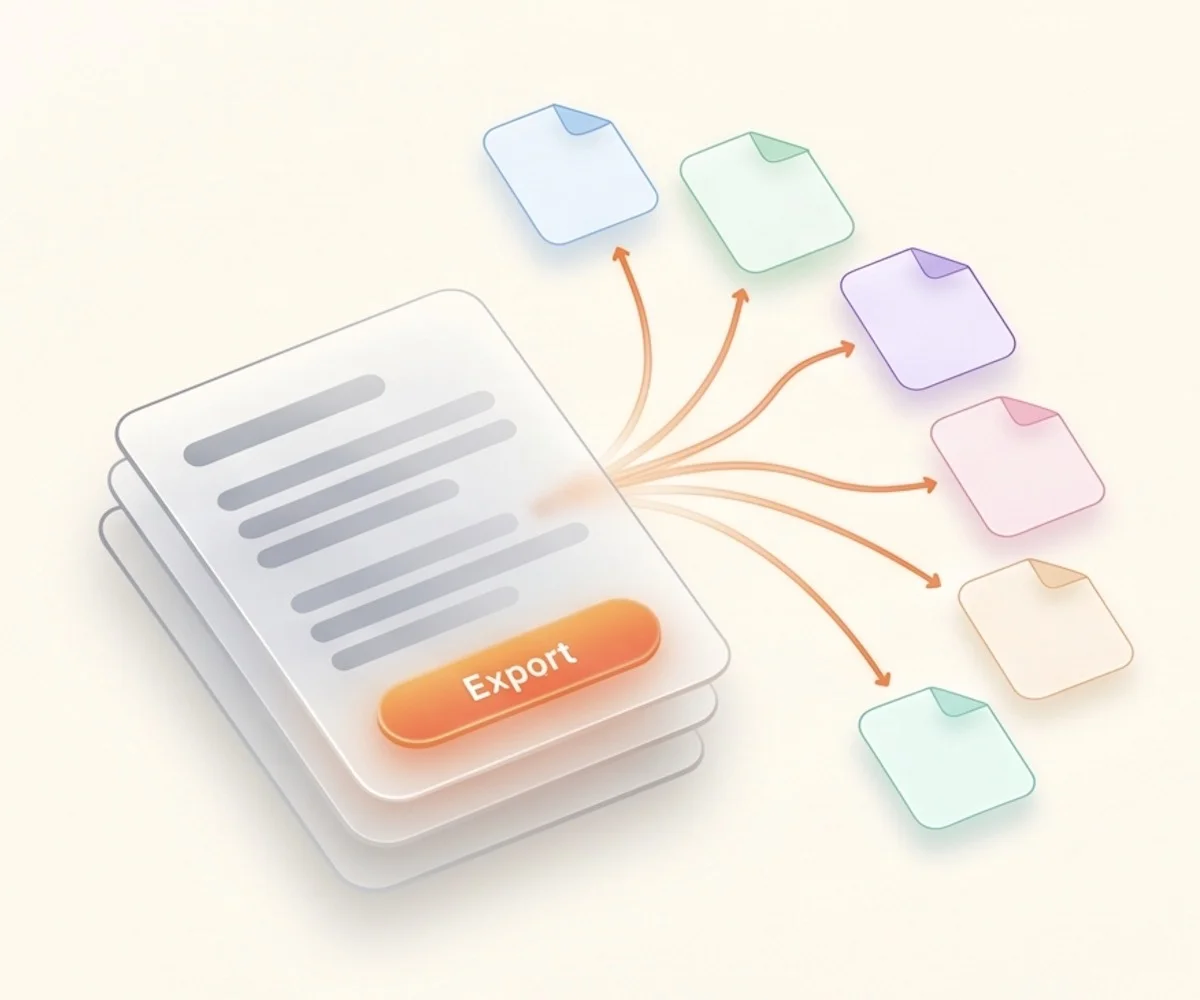
90+ Language Recognition
M4A to text works in more than 90 languages, not just English. Spanish, French, German, Italian, Portuguese, Dutch, Japanese, Korean, and many more. Pick the language before you upload, or leave auto-detect on and the tool finds it from the audio.
Transcribe M4A to text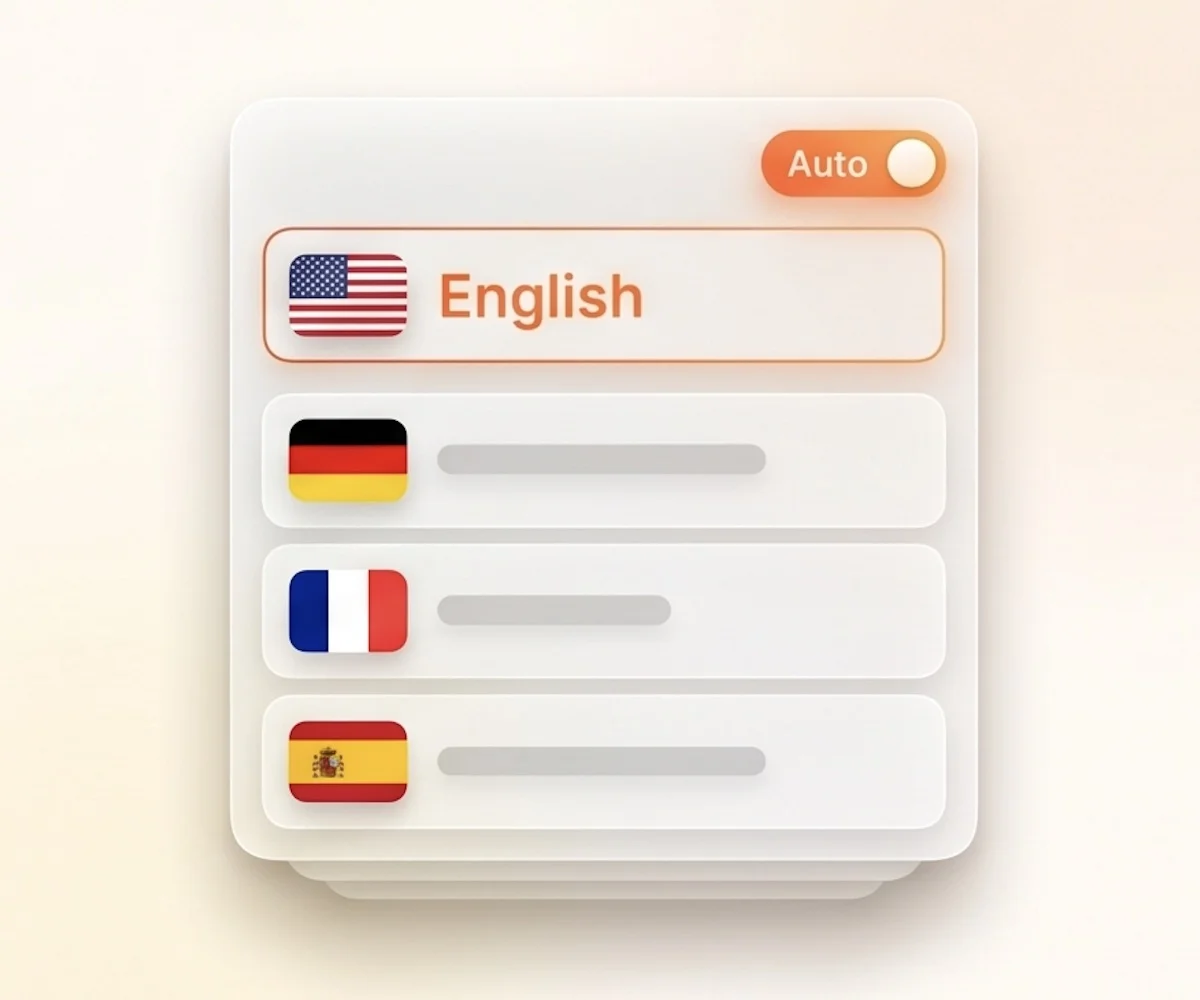
How to Convert M4A to Text
Drag the file into the upload box, or click to pick it from your device. One file or many — both work.
Choose the language spoken on the recording, or leave auto-detect on. Turn on speaker labels if more than one person talks.
Click the Transcribe button. The M4A to text converter reads your file and writes the transcript for you.
After M4A to text completes, check the transcript, fix any names or special terms, then export in the format you need.
Why Choose Our M4A to Text Tool
- M4A files accepted as-is
Upload the original file. No need to convert it first.
- Multi-speaker detection
M4A interviews and panels come back with each speaker labeled.
- 7 export formats
TXT, Markdown, SRT, VTT, CSV, DOCX, and PDF. Pick the one you need.
- 90+ languages
M4A to text covers English, Spanish, French, German, Japanese, Korean, and many more. Auto-detect works too.
- Long files in one go
Up to 10 hours and 5 GB per M4A. No need to split the file first.
- Make you convert M4A to MP3 first
Force you to use a separate format converter before transcribing.
- Skip speaker labels
You get a wall of text where every voice runs together. Hard to find quotes.
- Export TXT only
No SRT or VTT for subtitles. No DOCX for reports. No CSV for review.
- English only or limited languages
Few languages supported, with weak accuracy on non-English audio.
- Strict file size limits
You have to split the recording into small pieces before upload.
Frequently Asked Questions
What is this M4A to text converter?
How do I convert M4A to text?
Do I need to convert M4A to MP3 first?
Does it work with iPhone Voice Memos?
Does it work with WhatsApp voice messages?
Do I need to install software to convert M4A to text?
What makes this M4A to text converter better than other tools?
What formats can I export?
Can I edit the transcript?
Start Your M4A to Text Conversion
Your M4A file is ready. One upload, one transcript.