WAV to Text Converter
Voice recorder, DAW, studio mic — drop the .wav in, get the WAV to text transcript back.
Video or audio files from your device
Supports mp3, wav, m4a, flac, aac, ogg, opus, webm, amr, wma, mp4, mov, avi, mkv
Key Features of Our WAV to Text Converter
Direct WAV Support
Drop the .wav file in the upload box and you're set. There's no extra step to convert to MP3 or trim the file down. The WAV to text converter handles raw recordings straight from a voice recorder, a DAW project, a studio session, or whichever app captured the audio.
Convert WAV to text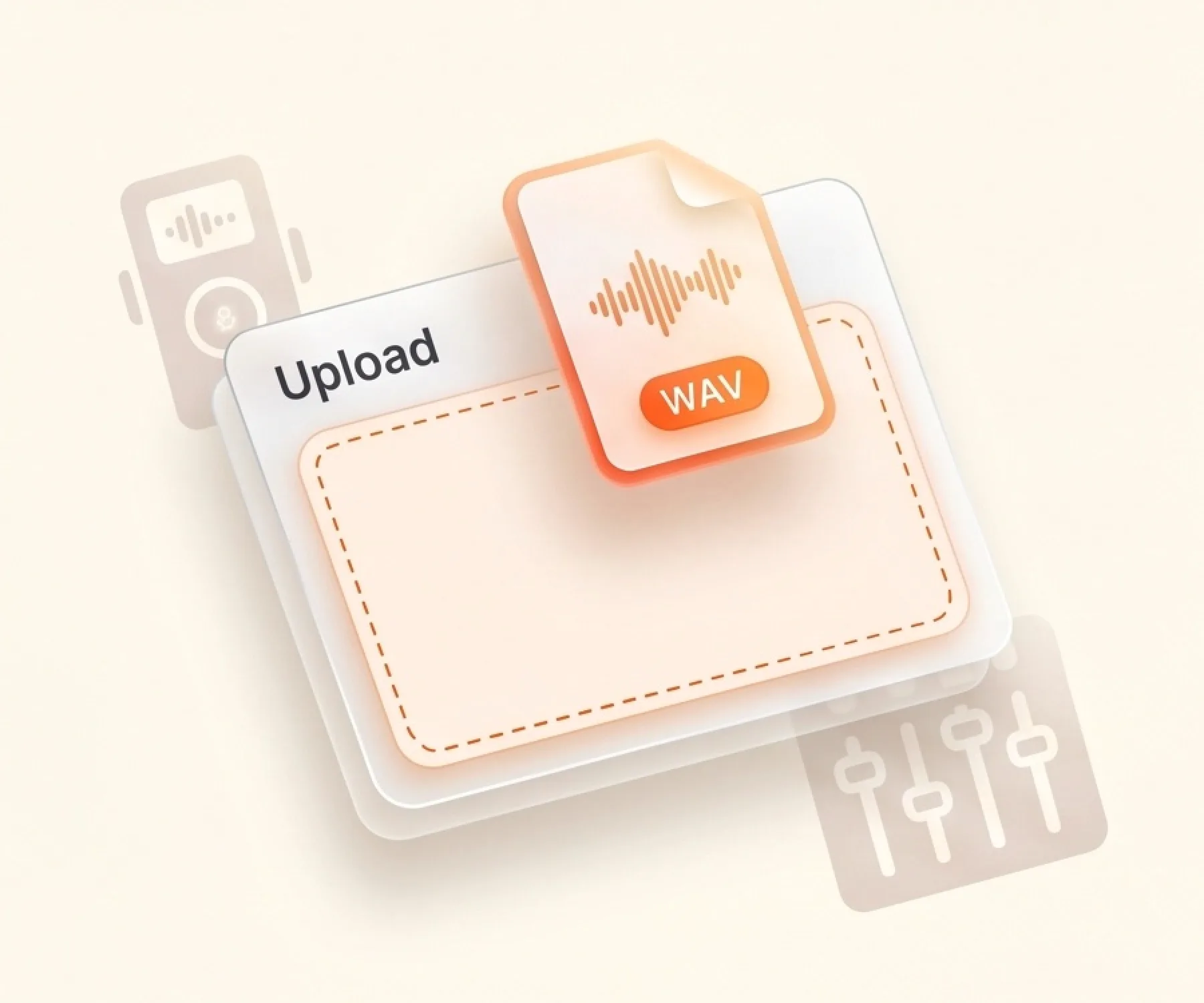
Multi-Speaker Detection
Recording an interview, a roundtable, a multi-mic podcast, or a panel discussion? The WAV to text converter splits the transcript by speaker. Each block shows who spoke and at what timestamp. Pull a quote without rewinding the recording.
Try WAV to text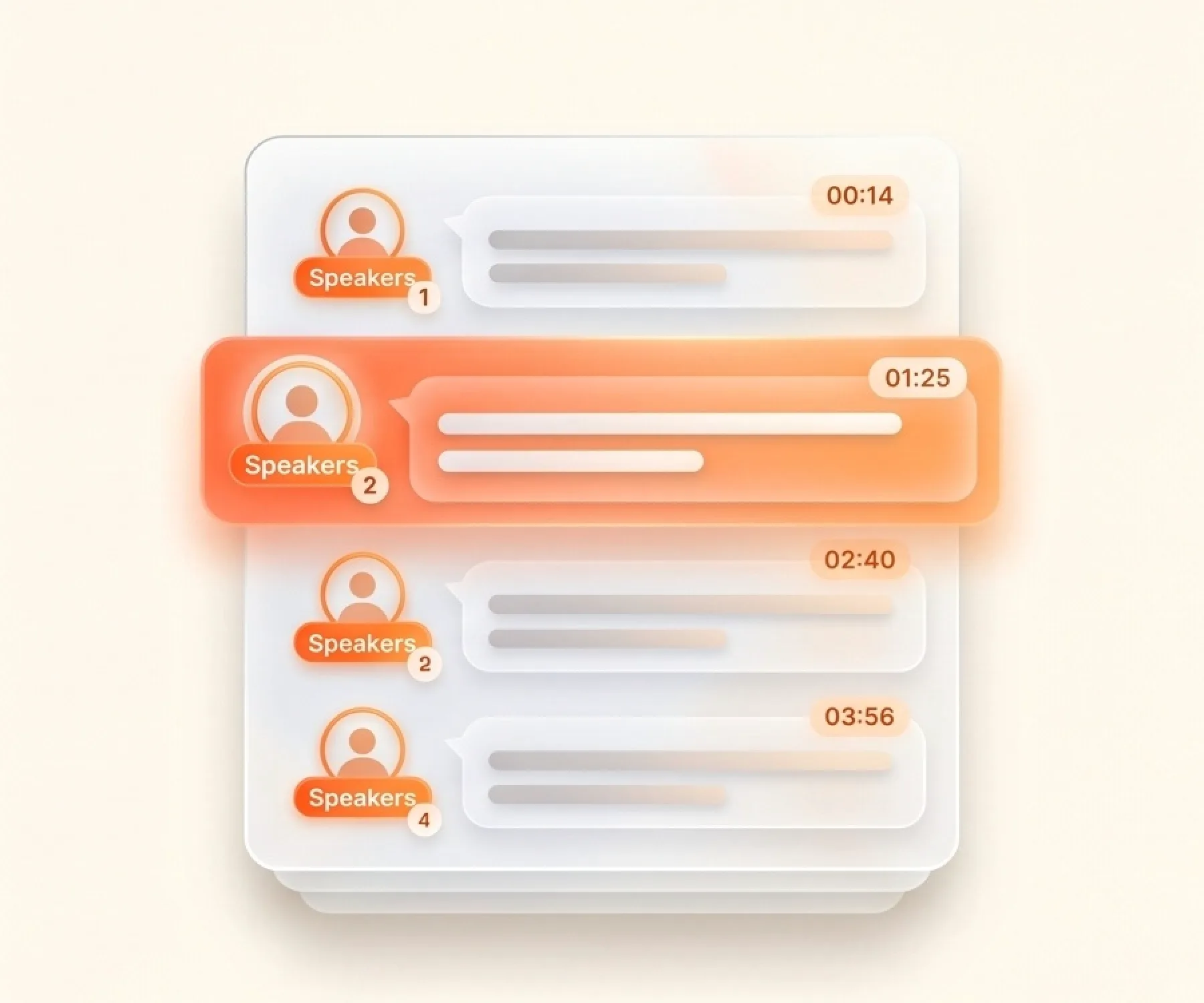
Fast WAV Transcription
A 3-hour panel recording would take a transcriptionist a full workday. The WAV to text converter ships the transcript in minutes, not hours. Drop in the session and walk away — when you come back, the transcript is ready to clean up.
Get WAV transcript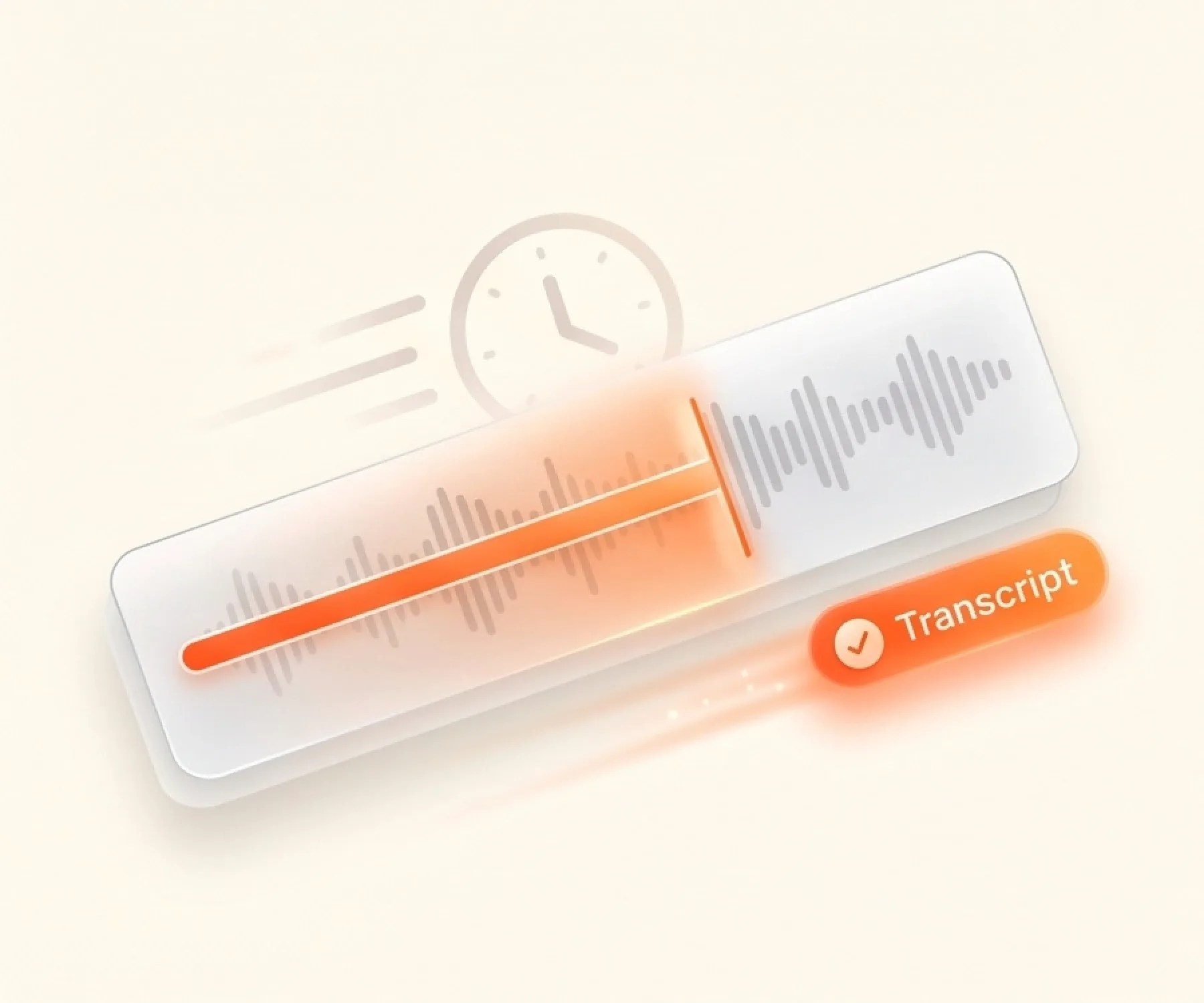
Seven Ways to Export
Hand off the transcript in whatever shape your workflow expects. SRT and VTT drop into a video editor. DOCX opens in a production team's report template. PDF goes to a client. CSV scripts a data pass. Markdown lands in a writing app. TXT for plain notes. One WAV upload, seven export formats out.
Upload WAV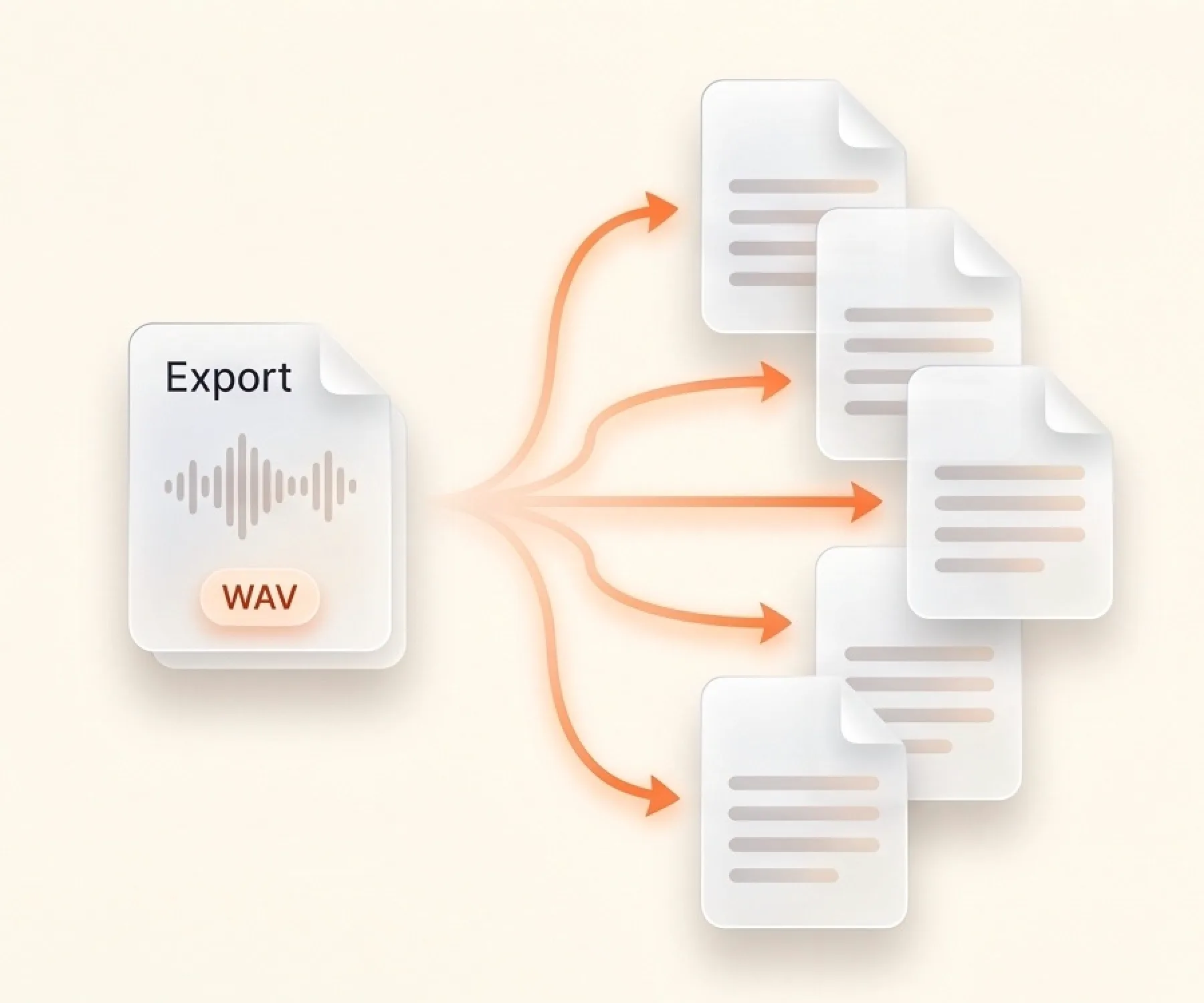
90+ Language Recognition
Not every recording is in English. The WAV to text converter handles 90+ languages — Spanish, French, German, Italian, Portuguese, Dutch, Japanese, Korean, and more. Set the language on upload, or let auto-detect figure it out from the audio.
Transcribe WAV to text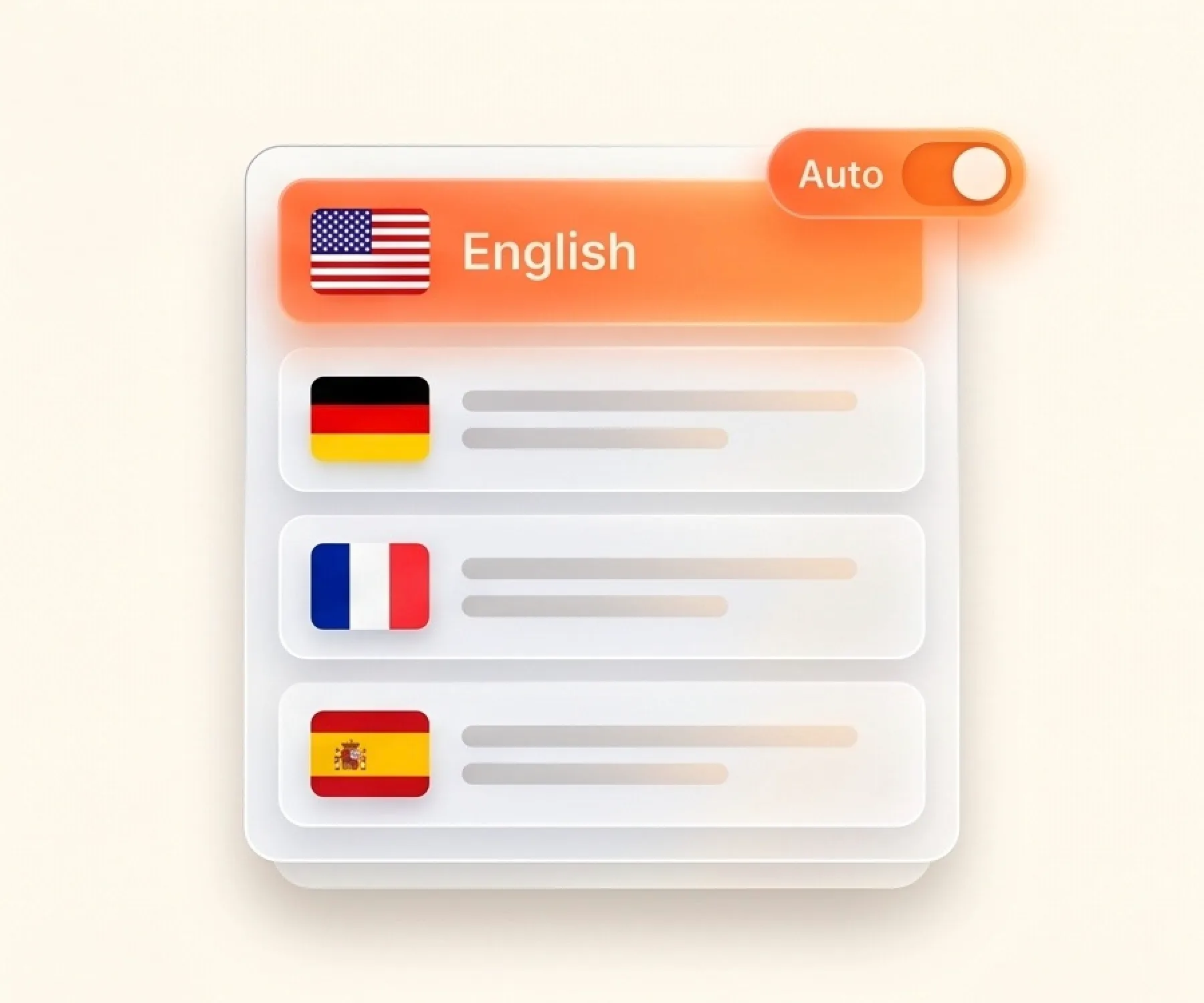
How to Convert WAV to Text
Drag the .wav file from your recorder's SD card, your DAW project folder, or your downloads into the upload box. Got multiple files? Drop them in together.
Set the language on the recording, or leave auto-detect on. Flip on speaker labels if there's more than one voice in the room.
Hit Transcribe. The AI works through the full recording in the background. Long sessions take more time, but you don't have to sit and watch.
When the WAV to text transcript lands, skim it for proper names, jargon, or product words the AI missed. Fix those inline. Export in whatever format your next tool needs.
Why Choose Our WAV to Text Converter
- WAV files accepted as-is
Upload the original .wav file. No need to convert it first.
- Multi-speaker detection
WAV interviews and recorded panels come back with each speaker labeled.
- 7 export formats
TXT, Markdown, SRT, VTT, CSV, DOCX, and PDF. Pick the one you need.
- 90+ languages
English, Spanish, French, German, Japanese, Korean, and many more. Auto-detect works too.
- Long files in one go
Up to 10 hours and 5 GB per WAV file. No need to split it first.
- Make you convert WAV to MP3 first
Force you to run a separate format converter before transcribing.
- Skip speaker labels
You get a wall of text where every voice runs together. Hard to find quotes.
- Export TXT only
No SRT or VTT for subtitles. No DOCX for reports. No CSV for review.
- English only or limited languages
Few languages supported, with weak accuracy on non-English audio.
- Strict file size limits
You have to split the recording into small pieces before upload.
WAV to Text — Frequently Asked Questions
What is a .wav file?
How do I convert WAV to text?
Is the WAV to text converter free?
Can I upload WAV files from a voice recorder or DAW?
Do I need to convert WAV to MP3 first?
What file size and length can I upload?
What export formats can I download?
Can I edit the WAV transcript?
How accurate is WAV to text transcription?
Can I export the WAV transcript as SRT subtitles?
Can I save the WAV transcript as a Word document?
Start Your WAV to Text Conversion
Hours of recording, one upload. The WAV to text transcript comes back ready to read, search, and ship.