Video to Text Converter
Upload your video and get an accurate transcript with subtitles in minutes.
Video or audio files from your device
Supports mp3, wav, m4a, flac, aac, ogg, opus, webm, amr, wma, mp4, mov, avi, mkv
Key Features of Our Video to Text Converter
Direct Video Upload
Drag your video file into the upload box and you're set. There's no extract-audio step, no separate converter, no plugin to install. The video to text converter takes the file as it came out of your camera, your screen recorder, your Zoom export, or your video editor — and ships the transcript back.
Convert video to text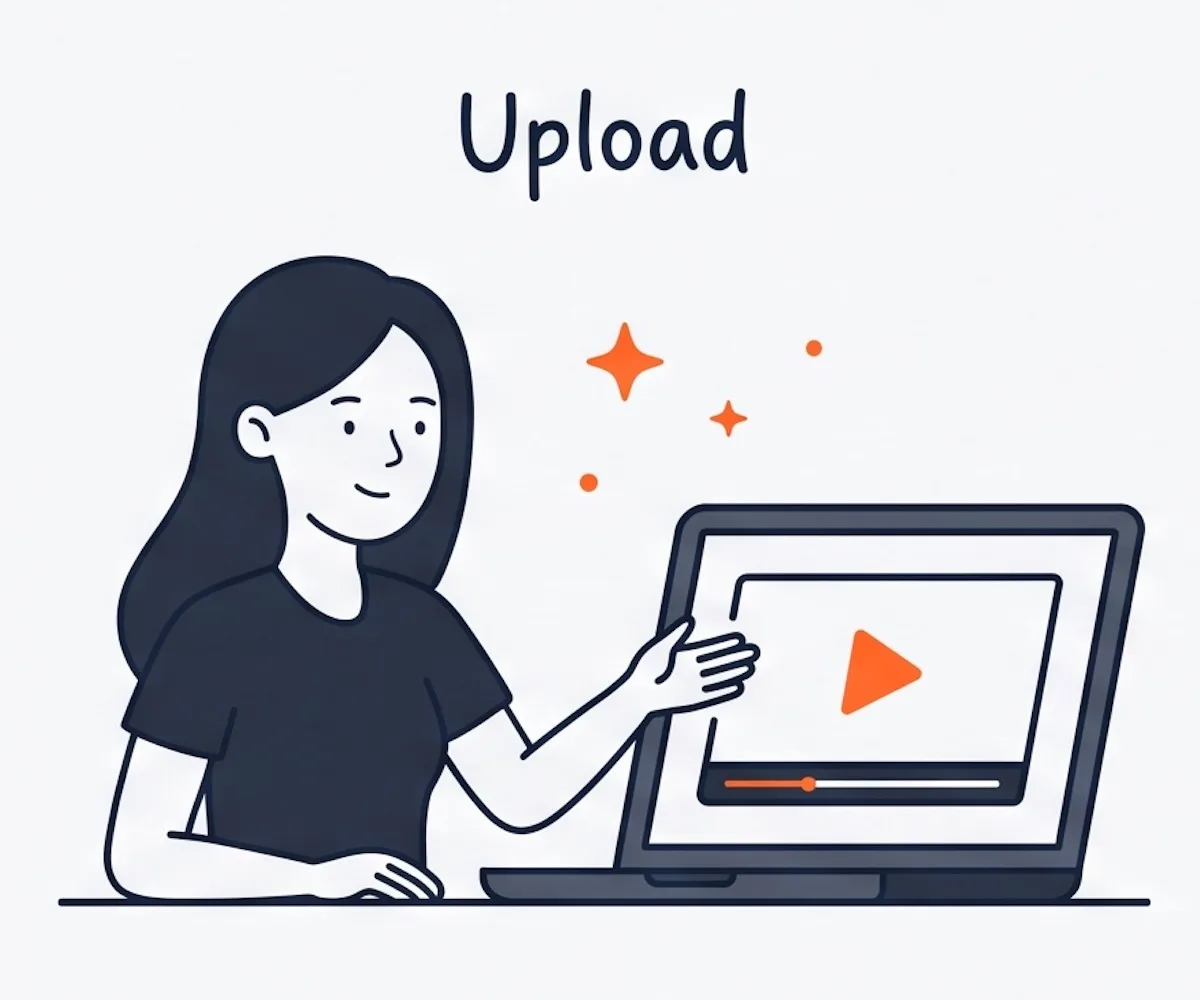
Multiple Export Formats
Hand off the video to text transcript in whatever shape your workflow needs. SRT and VTT drop straight into Premiere, Final Cut, DaVinci Resolve, or CapCut as subtitles. DOCX opens in a client's report template. PDF lands in a project archive. Markdown drops into a writing app. TXT for plain notes. CSV for a row-by-row review.
Get video subtitles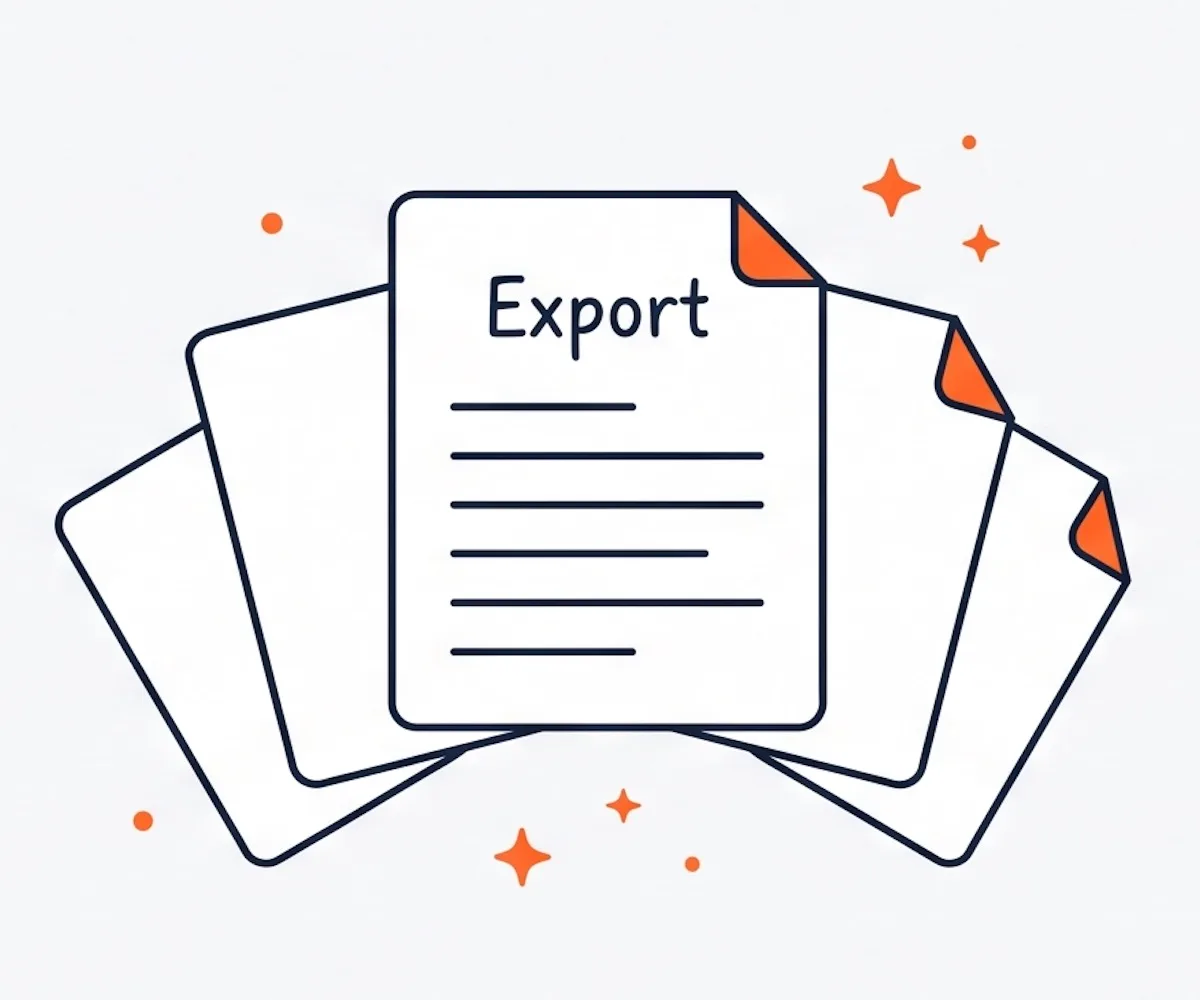
Multi-Speaker Detection
Recording an interview, a panel, a webinar, or a roundtable? The video to text converter splits the transcript by speaker. Each block shows who spoke and at what timestamp. Pull a quote, clip a soundbite, or build show notes without replaying the recording.
Try video to text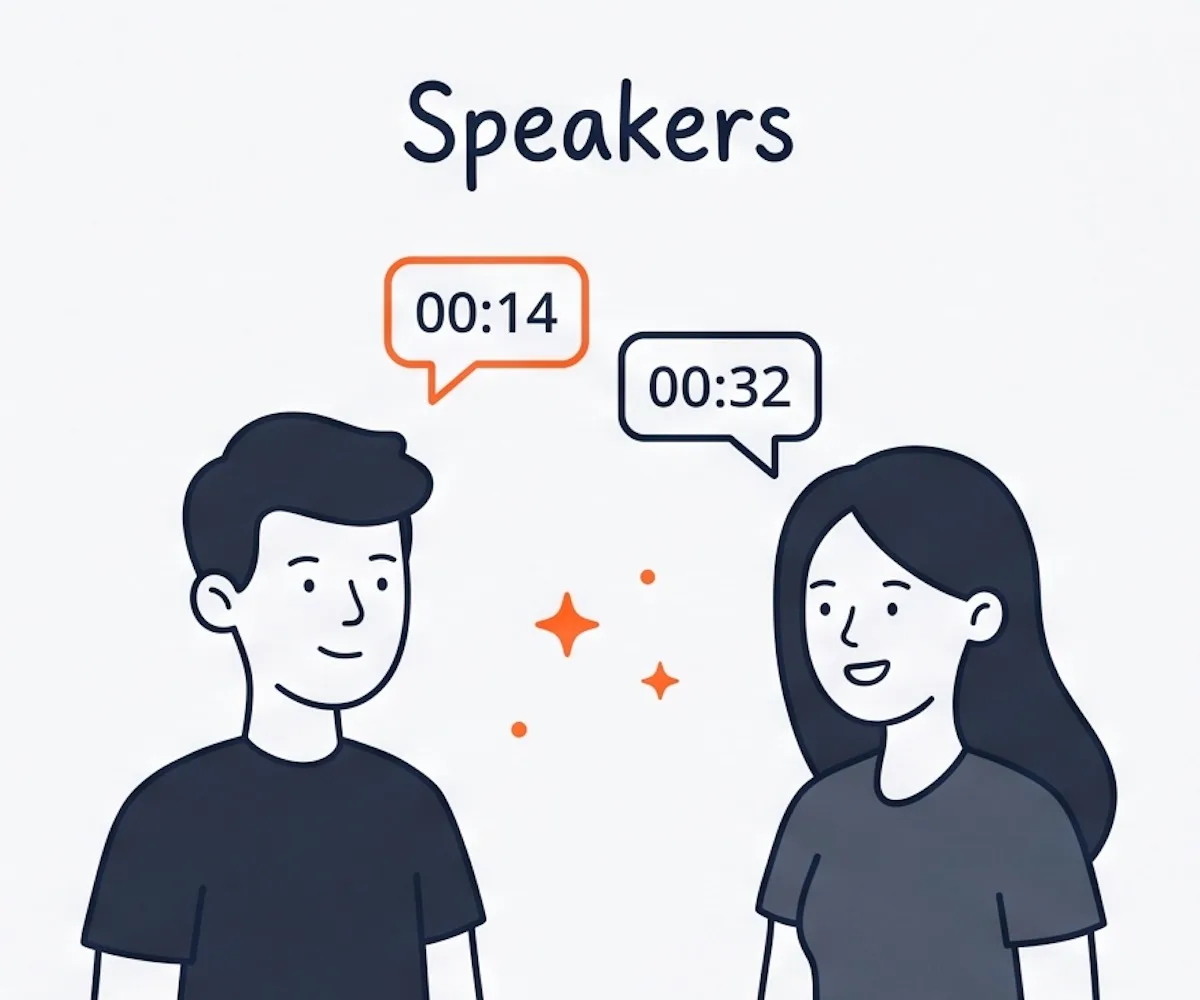
Long-Video Support
Conference talks, webinars, full lecture recordings, and multi-hour panels all fit in one go. A single video can run up to 10 hours and 5 GB. Drop in the full recording and walk away — when you come back, the video to text transcript is ready for review.
Upload video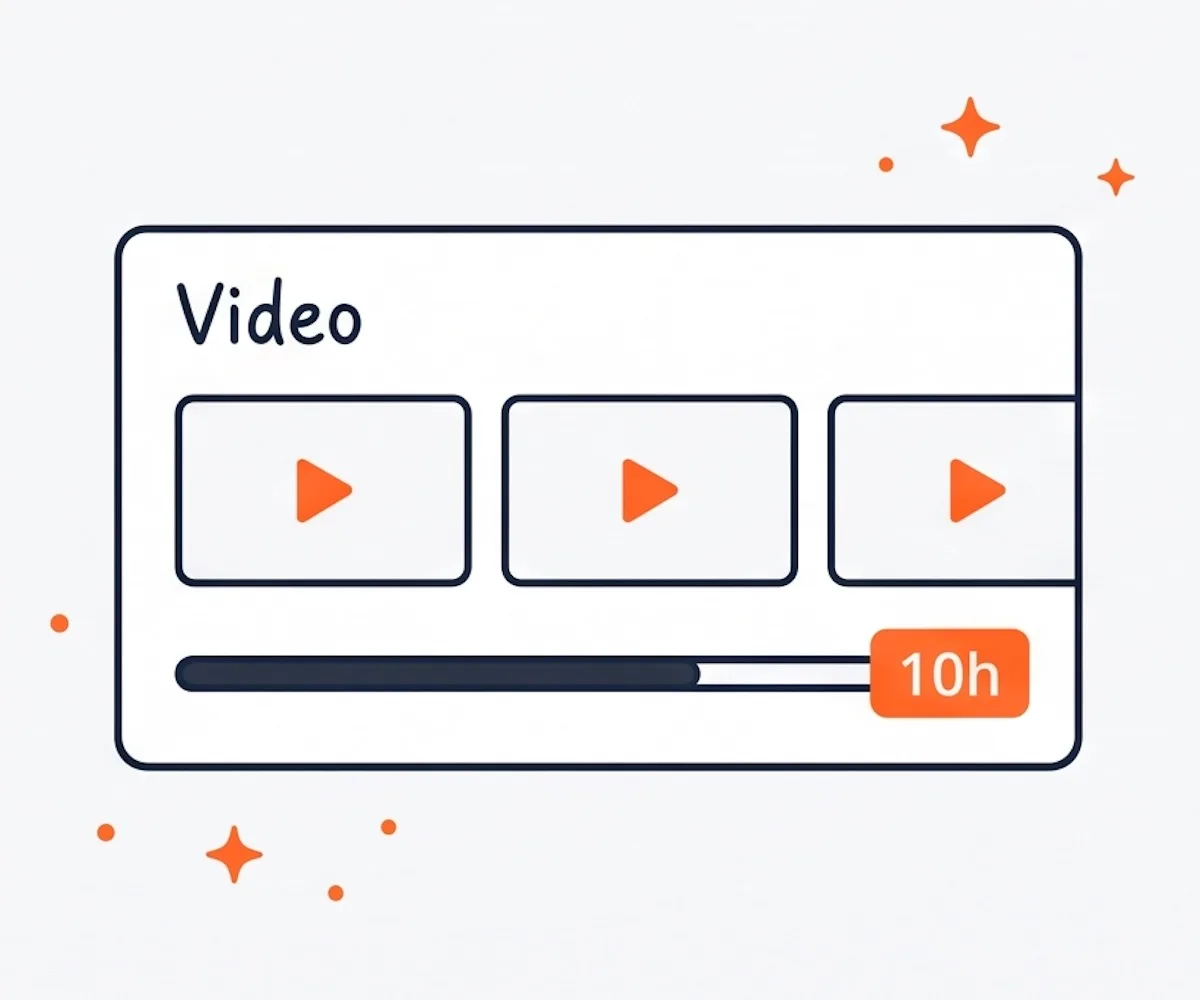
90+ Language Recognition
Not every video is in English. The video to text converter handles 90+ languages — Spanish, French, German, Italian, Portuguese, Dutch, Japanese, Korean, and more. Set the spoken language on upload, or let auto-detect pick it from the audio track.
Transcribe video to text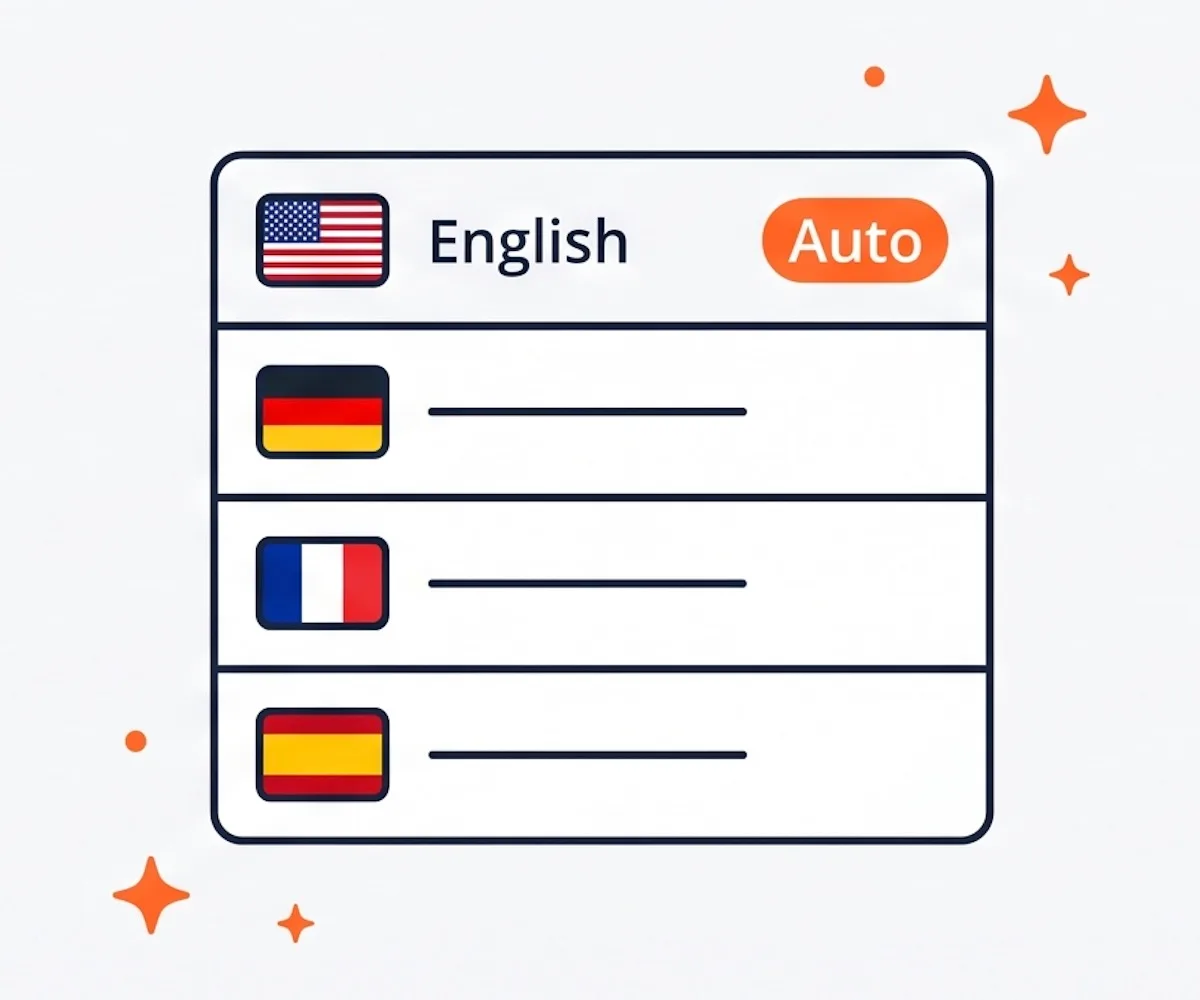
How to Convert Video to Text
Drag the video file from your camera, your Zoom downloads folder, your screen recorder, or your editor's export folder into the upload box. Common video formats work.
Set the spoken language on the video, or leave auto-detect on. Flip on speaker labels if there's more than one voice in the recording.
Hit Transcribe. The AI works through the full video in the background. Long recordings take more time, but you don't need to sit and watch the progress bar.
When the video to text transcript lands, skim it for proper names, product terms, or jargon the AI might have missed. Fix those inline. Export as a Word doc, a PDF, an SRT subtitle file, or whatever your next tool needs.
Why Choose Our Video to Text Converter
- Video files accepted directly
Upload the original video. No extract-audio step, no separate converter.
- SRT and VTT subtitle export
Captions ready for Premiere, Final Cut, DaVinci, CapCut, or any web player.
- Multi-speaker detection
Interview, panel, and webinar transcripts come back with each speaker labeled.
- 90+ languages
English, Spanish, French, German, Japanese, Korean, and many more. Auto-detect works too.
- Long videos in one go
Up to 10 hours and 5 GB per video. Webinars and full conference talks fit.
- Make you extract audio first
Force you to run a separate tool to pull the audio track before transcribing.
- TXT only — no subtitle format
You retype every caption into the video editor by hand.
- Skip speaker labels
A wall of text where every voice runs together. Hard to find quotes.
- English only or limited languages
Few languages supported, weak accuracy on non-English video.
- Strict length and size limits
Split your webinar into ten clips before upload.
Video to Text Use Cases
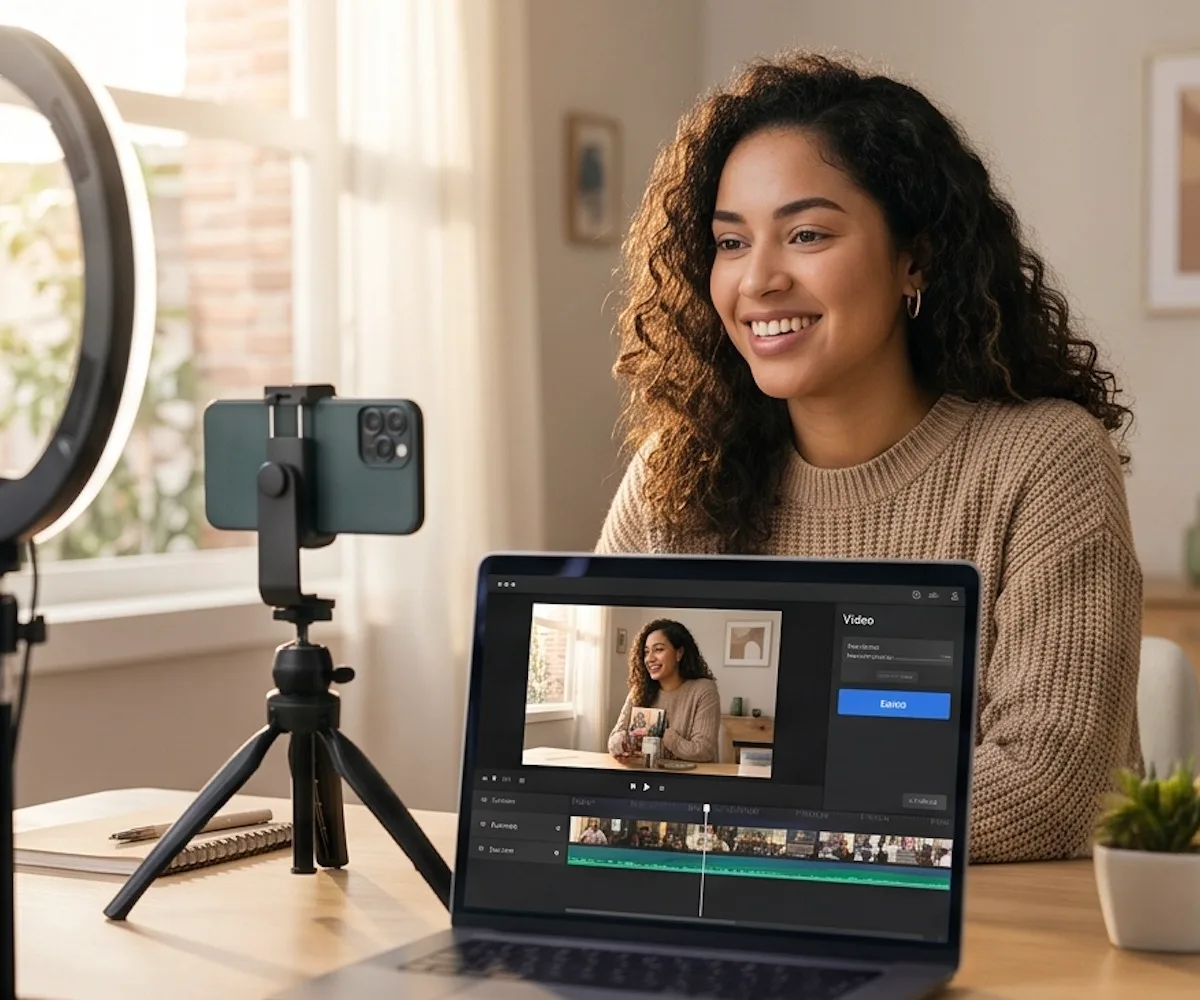
Run the video to text converter on your YouTube export, Reel, or Short, and download an SRT or VTT file ready for the timeline. Captions land time-coded and ready to upload — no manual sync, no second tool.
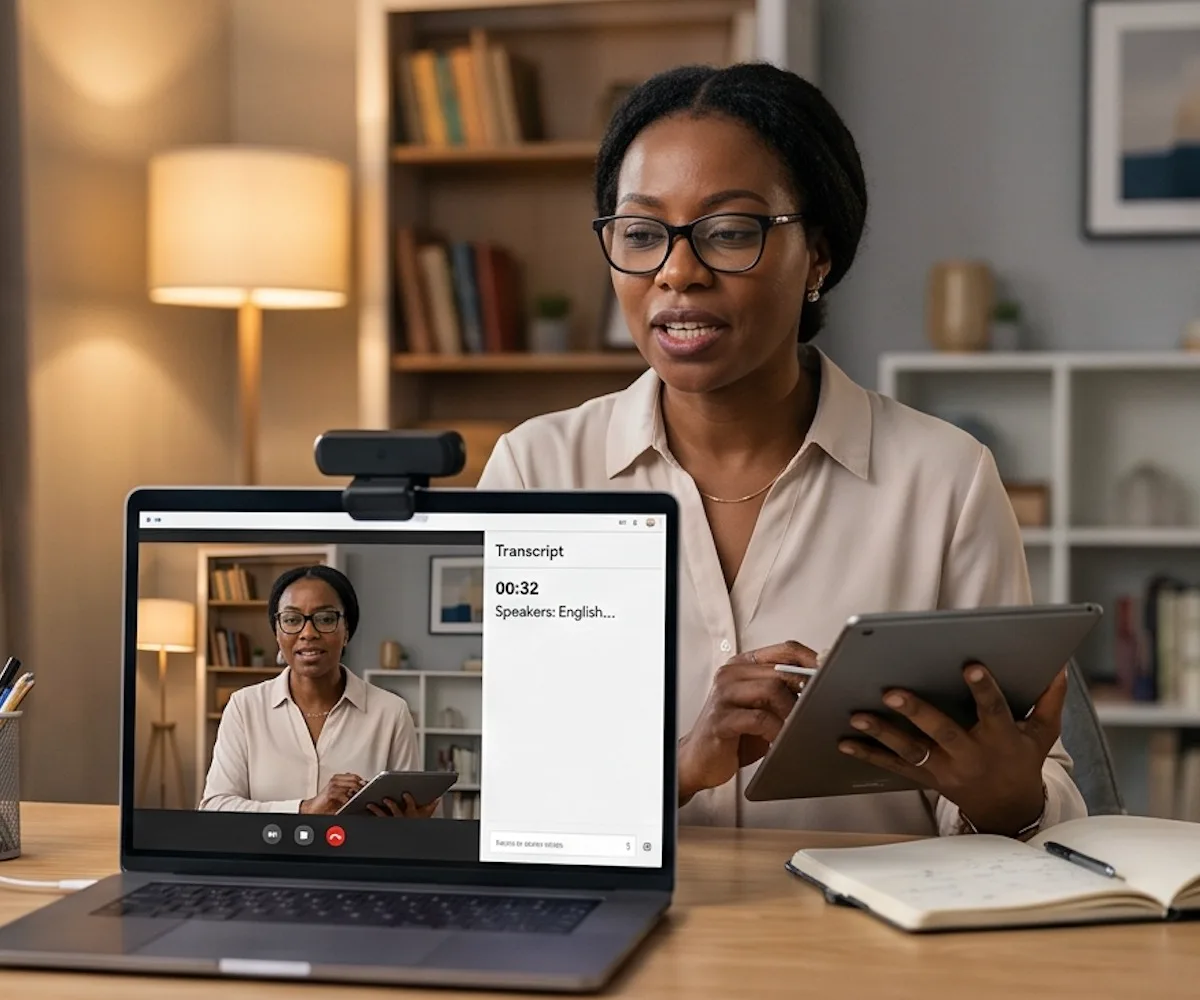
Upload the lecture recording, run video to text, and ship the transcript with the video. Students searching course content jump to the moment they need. ESL learners read along while they listen. The video to text transcript replaces hours of note-typing.

Upload a webinar recording for video to text. The transcript becomes your blog post, your social pull-quotes, your email recap, your sales-call snippets, and SEO text for the landing page. Five outputs from a single video — no re-watching required.
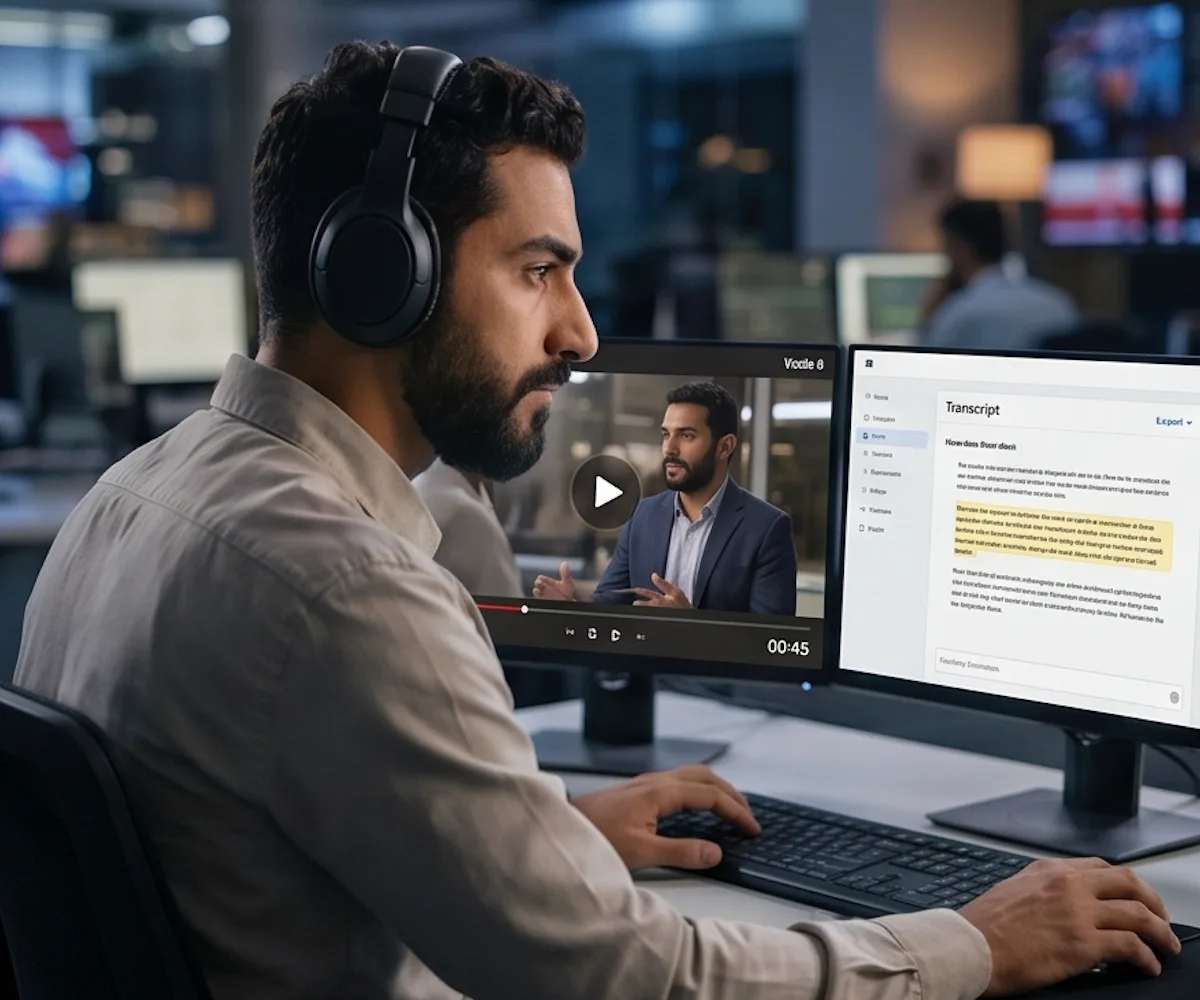
The video to text converter turns long interview footage and B-roll into text you can search in seconds. Speaker labels separate your subject from your producer. Cite the exact moment without replaying the footage.
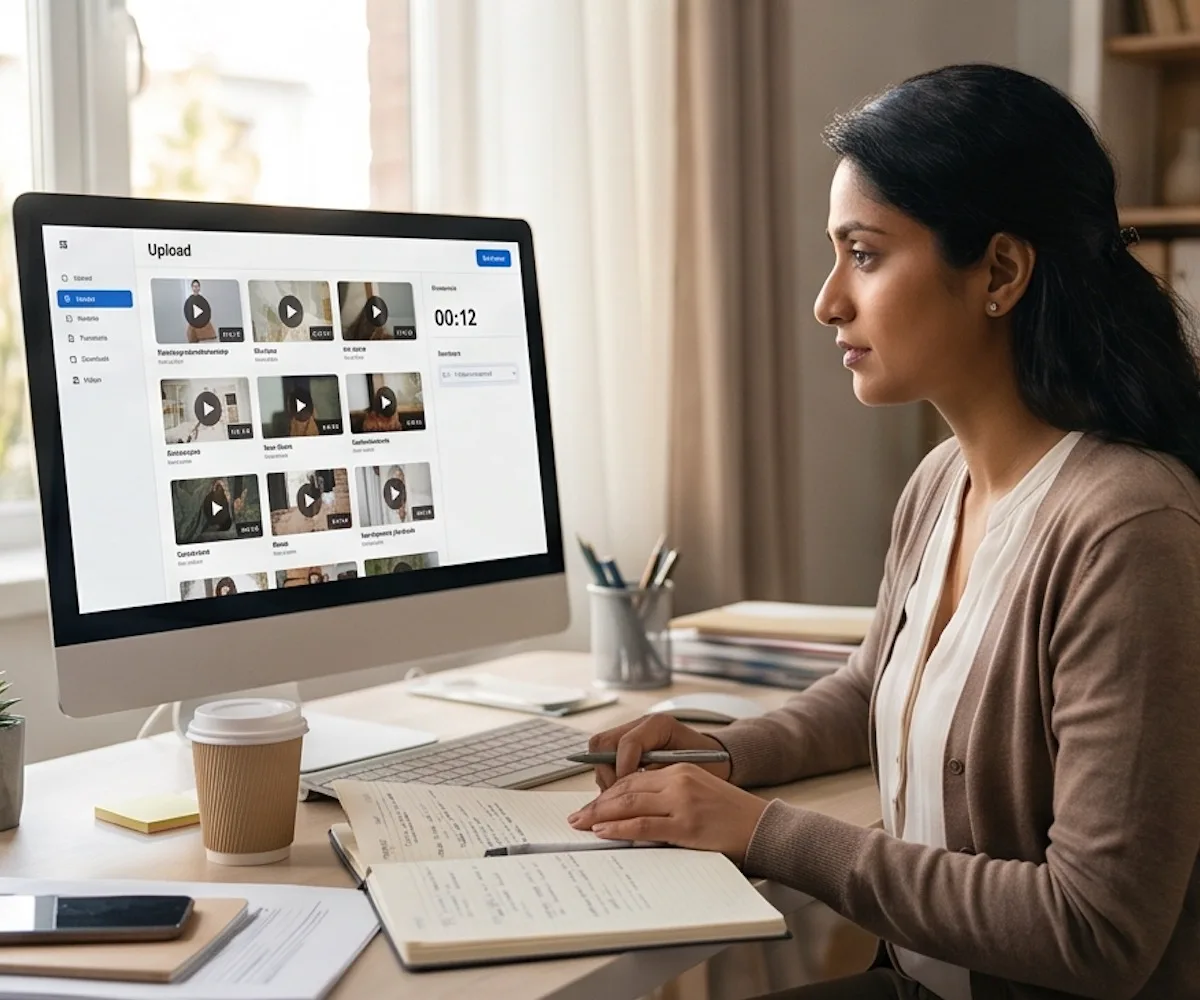
Upload up to 50 interviews, focus groups, or research recordings at once. The video to text tool tags each speaker, marks every timestamp, and exports to CSV for review in your analysis tool. Long sessions fit without splitting.
Video to Text — Frequently Asked Questions
What is a video to text converter?
How do I convert video to text?
Is the video to text converter free?
Do I need to install software to convert video to text?
What video formats are supported?
Can I upload long videos like webinars or lectures?
What export formats can I download?
Can I get subtitles from my video?
Can I edit the video to text transcript?
How accurate is video to text transcription?
Can I save the video to text transcript as a Word document?
Start Your Video to Text Conversion
Hours of video, one upload. The video to text transcript comes back ready to read, search, and ship as subtitles.